But once I migrate from Classic to CC, Adobe’s recommendation is that I turn off sync in Lightroom Classic. I understand why this is (I think), but I’m planning on ignoring that advice. I imagine that turning on sync for the catalog I migrated from could create some nasty conflicts, so instead, I am planning on creating a brand-new, empty Lightroom Classic catalog and turning on sync for that.
Don’t do that. If you insist on keeping sync turned on in Lightroom Classic after migrating to Lightroom CC, just continue to use your existing Classic catalog. So long as you’re using the latest version of Lightroom Classic, it knows not to sync down all of the photos that it already has.
Okay, that’s reassuring. I had been prepared for a complete re-download of my entire 4TB history of digital photography, but I’m happy not to have to do that.
What matters to me is that I maintain my own local copy of all my originals. I know I can set Lightroom CC to do that, but by using Lightroom Classic for this purpose, I’m killing two birds with one stone — I get my local archive, and the full-featured utility of Classic, in one place. Everywhere else, on my laptop and iOS devices, I’ll use CC. When I travel, I’ll keep Classic running on my iMac in my studio, so it’s downloading and making redundant backups (thanks to Backblaze) of whatever I’m able to upload via CC from the road.
This brilliant plan of mine has zero flaws and is brilliant, yet directly contradicts Adobe’s official advice. What am I missing?
If you want to have all your originals in the cloud, then you should use Lightroom CC. If Lightroom CC is not yet capable enough for you, then you should forgo the golden paradise of cloud storage and continue to use Lightroom Classic as you do now, until such a time as Lightroom CC has evolved enough to meet your needs. Knowing what, specifically, you miss from Classic will of course help us prioritize our ongoing improvements to Lightroom CC.
I’m always happy to provide that kind of feedback, as you know. Right now there’s so much that’s missing that I’m definitely not ready to migrate. But I really like Lightroom CC, and I love the idea of having all my photos in “the cloud,” so I imagine someday there will be an inflection point where the pros of migrating will outweigh the cons, and I’ll take the plunge before CC is 100% able to do every Classic thing I rely on. So this idea of using Classic and CC together is hard for me to shake. Why does Adobe recommend against it?
Could you, as a technically sophisticated person who is aware of the potential pitfalls (and who has my phone number for when you get in trouble) cobble together a workflow that uses both applications, such that all your originals are up in the cloud, but you can continue working primarily in Classic? Certainly...
Where it Got Weird
Benjamin did then go on to answer my question in great detail, giving candid and concrete reasons why Adobe recommends against syncing Classic and CC, despite the fact that they are designed to do just that. However, Adobe PR asked me to replace all that helpful information (three paragraphs worth) with this:
...But it's not a workflow we recommend or plan to invest in going forward.
Adobe seems really touchy about this stuff. I think what Benjamin wrote would have helped clear the air with some refreshing honesty, and I’m sad that you didn’t get to read it.
I will share one solid flaw in my plan that Benjamin thought of, but didn’t write about: Remember that Lightroom CC’s “truth is in the cloud,” where Lightroom Classic thinks of your local storage as the canonical location of a photo. This distinction becomes abundantly meaningful when you delete a photo. If you delete it from Lightroom CC, Lightroom Classic doesn’t delete its local original. It keeps it, and just thinks of it as un-synced.
So you could have this scenario — and, in fact, I’ve unwittingly done exactly this:
- Import a photo into Lightroom CC. In Spain.
- It syncs up to Lightroom’s cloud photo storage.
- Lightroom Classic, dutifully running on your computer back home, downloads the photo to its local storage.
- Still in Spain, you realize the photo is hot garbage, and delete it.
- But it’s still in your Lightroom Classic library. Forever.
- Sad trombone.
My conclusion? Maybe I’ll be waiting even longer than I hoped to migrate to Lightroom CC.
Back to the Q&A
As I mentioned, my Lightroom Classic catalog has a mix of photos imported into Classic, and synced-in from CC.
Any photos that are imported into Classic and synced up to CC from there have originals on my local drive, and Smart Previews on CC.
Any photos originating from Lightroom CC have the originals on CC. So my CC stuff is a mix of originals and Smart Previews.
When I do migrate, will all the Smart Previews be replaced with originals?
Well, to be totally technically correct (my favorite kind of correct!) “replaced” is probably not accurate, I think it keeps the Smart Preview around as well. But the simple answer to your question is “yes.” Any photo which is imported into Lightroom CC (including via migration) will have its original uploaded to the cloud, even if that photo was already represented in the cloud by a Smart Preview.
I have a lot of photos, and they are on a big external drive. I know Lightroom CC has to manage its own storage, i.e. it can’t reference my local copies the way Classic does. I understand why this is, and I think it was the right decision for Lightroom CC. However, I don’t have enough room on my system drive to store a redundant copy of all my originals. So what should I do when it’s time to migrate?
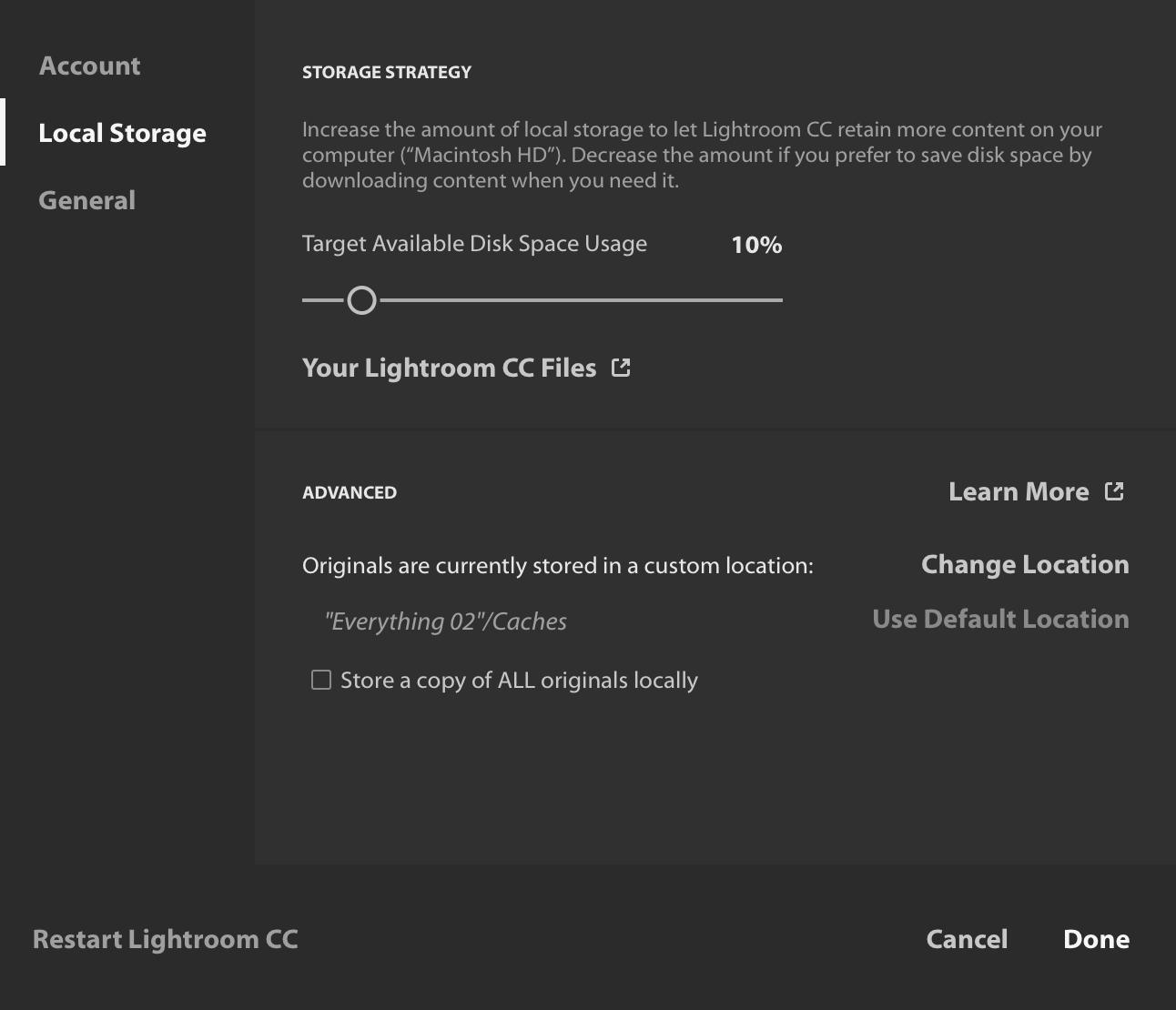
You need free space equal to the amount of space taken up by your images, but that free space doesn’t have to be on your system drive, it can be anywhere. Before starting the migration, go to the Lightroom CC preferences and change the location where originals are stored to some drive (internal or external) that has enough free space to hold all your images.
If you don’t have enough free space anywhere, and don’t want to buy another drive, then your alternative is to export sections of your master catalog as smaller catalogs, and migrate those smaller catalogs one at a time, not beginning the next until the previous has finished syncing originals to the cloud, so that the local cache can be cleared.
Okay, so I’ll make sure I have enough space on Big External Drive Two for a complete copy of all my locally-stored originals, set Lightroom CC to use that location for originals, and then initiate the migration.
Then Lightroom CC will copy everything over to this managed storage, and start sending it up to Creative Cloud to the best of its abilities given my internet upload bandwidth.
Can I immediately tell Lightroom CC that I do not want it to store originals? Will it then remove them from Big External Drive Two as they are added to the cloud?
Or should I wait until the post-migration mega-sync is complete before I do this?
You don’t ever need to tell it that you _do_ want to store originals locally. In other words, in the Lightroom CC preferences, set a custom location for the storage of originals, but do not check the “Store a copy of ALL originals locally” checkbox. Thus that local copy of all your originals that Lightroom CC makes at the time of migration will just be a cache that it will purge on its own when it can.
Do not switch the storage location for originals back to your internal drive until after all the upload is complete, because when you switch the location, Lightroom will try to move all the originals from the old location to the new location and, in your case, will find that it does not have room to do so.