• Blog
  • About
  • Tutorials
  • Prolost Store
  • Archive
    • Recent
    • Featured
    • All
  • Where to Begin?
  • Maschwikipedia
  • Contact
  • Comment Policy
  • Menu

Prolost

by Stu Maschwitz
  • Blog
  • About
  • Tutorials
  • Prolost Store
  • Archive
    • Recent
    • Featured
    • All
  • Where to Begin?
  • Maschwikipedia
  • Contact
  • Comment Policy
supercomp_3k.jpg

Red Giant VFX Suite

June 18, 2019

Today Red Giant has released a brand-new collection of plug-ins for visual effects compositing. It’s called VFX Suite, and some of these tools are things I’ve been dreaming about since computers were beige.

There are nine plug-ins in the suite. You can learn about all of them at Red Giant’ but here I’ll focus on the five I created tutorials for.

Supercomp

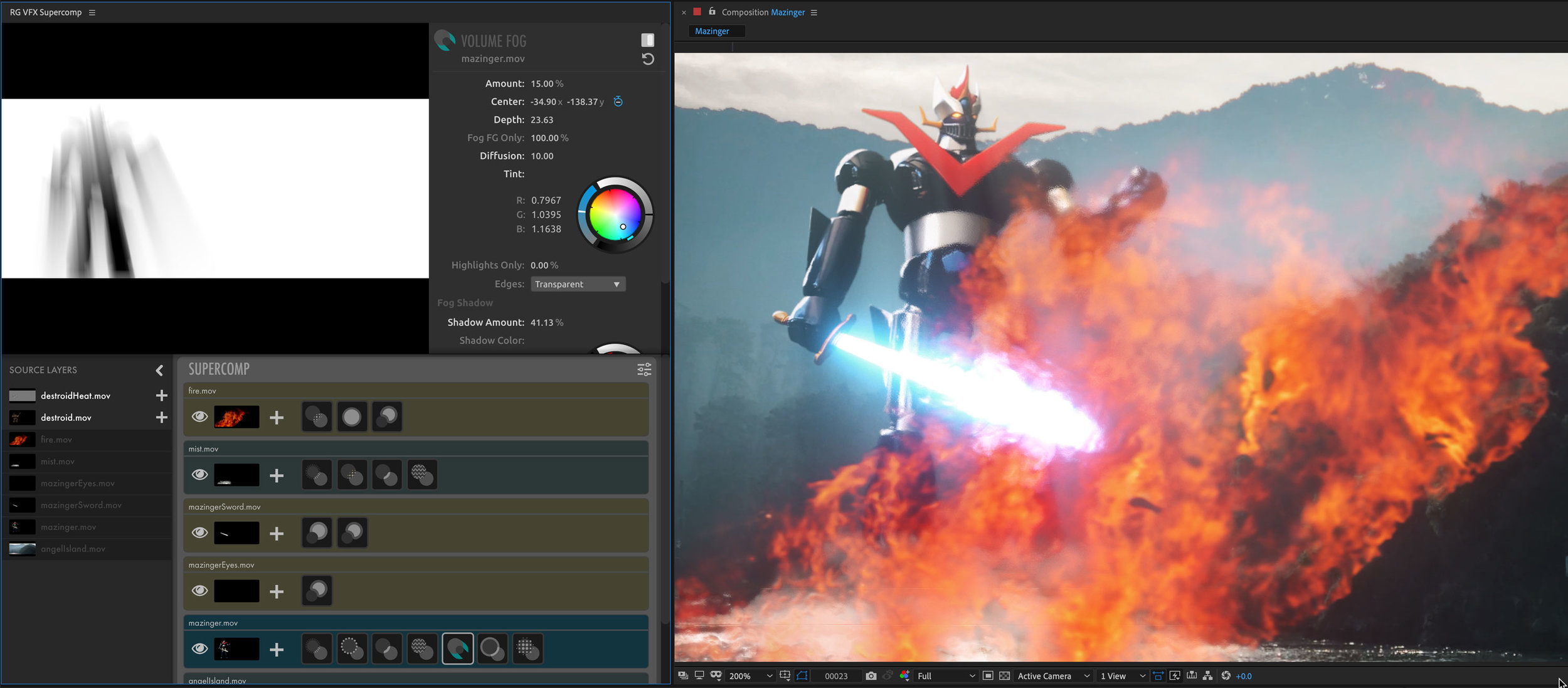
Supercomp is possibly the most ambitious effect Red Giant has ever created. It’s a complete compositing engine that runs in a panel in After Effects. It makes realistic, integrated composites easier and more intuitive to create, thanks to its unique render engine that understands how layers need to interact in a VFX composite. Light Wraps react to every layer below them, glows wrap around the layers in front of them. Everything is gamma-managed and works in 32-bit linear light, and grain is handled automatically.

This is basically every trick I’ve learned in my 24 years (sweet lord) of visual effects work, packed up in a gorgeous user interface and a lightning-fast GPU render engine.

Set aside a brisk 52 minutes to watch my tutorial:

King Pin Tracker

Corner pinning is an essential part of any VFX workflow, but the tools in After Effects are missing some important features. Years ago I helped design Red Giant’s Corner Pin effect to allow more flexible corner pinning, with “from” pins, perspective transforms, and tons of professional control. King Pin Tracker builds on this foundation and adds amazing new render quality and a blazing-fast, super-accurate planar tracker.

Spot Clone Tracker

Spot Clone Tracker is like a clone brush for video. It has its own amazing tracker built-in, making it super easy to remove small and large blemishes, or even entire objects, from your video. Lighting and texture are matched automatically, with tons of control.

Optical Glow

This is another one that I’ve been dreaming about forever. Why is it so hard to make a beautiful glow that glows like a glow should? We dug deep into the physics of light and created a glow that is gorgeous and realistic, but also offers a ton of artistic control.

Chromatic Displacement

A displacement effect with a beautiful prismatic light-refraction look. Easy to use, blazing fast, tons of control. Detecting a theme here?

Literally So Much More

There’s also a killer new update to Primatte Keyer, a GPU-accelerated Knoll Light Factory with stunning new lens flare presets, and updates to Reflection and Shadow, the embarrassingly useful duo.

VFX Suite is available now at Red Giant.
Tags: Red Giant, Visual Effects, Filmmaking, Tutorials, Adobe After Effects, VFX Suite
2 Comments
formCollide.gif

Trapcode Suite 15, Featuring Fluid Dynamics

October 30, 2018

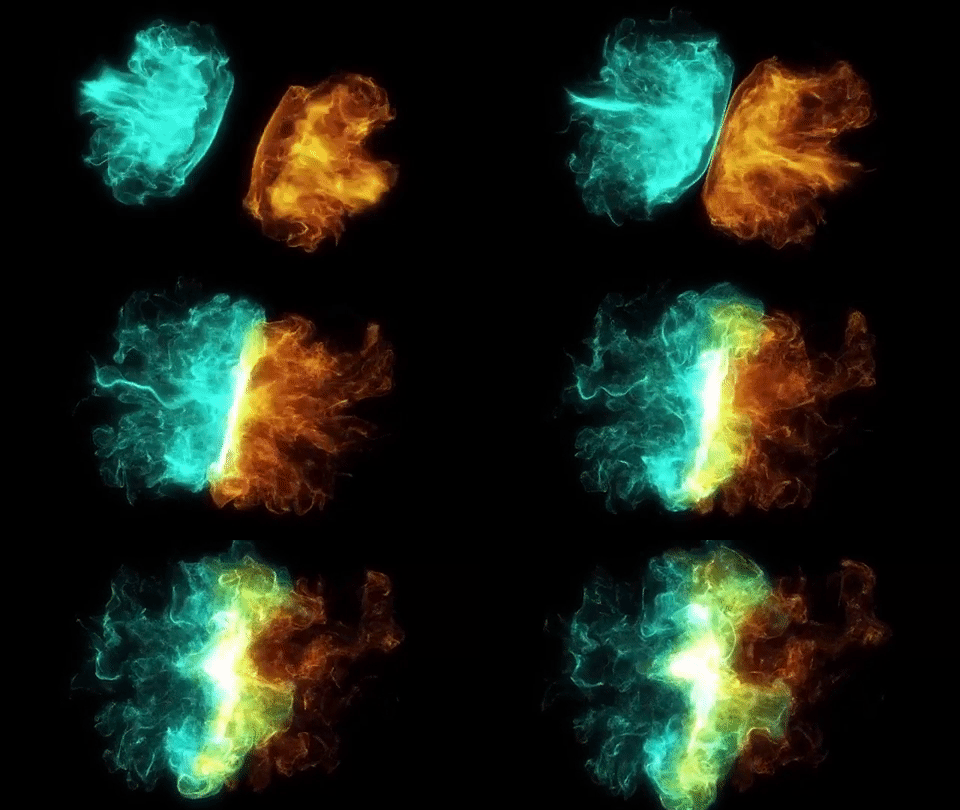
Last year, one of the Red Giant engineers presented some research on fluid dynamics to our team. He showed these gorgeous animations of realistic fluid motion. Only they weren’t animations — they were simulations, running in real time on his laptop.

This became the foundation of today’s update to the Trapcode Suite. Both Particular and Form now feature real-time fluid dynamics. You simply have to try it to believe it. I’m still wrapping my brain around all the possibilities.

We love bringing exciting new features to Trapcode, but we agonize over each new capability too, because the hallmark of Particular has always been the amazing, powerful things you can do quickly and easily, without feeling like you’re learning a new 3D application. What I think I’m most proud of our team for is making a fluid dynamics engine that’s fun and easy to use, but powerful enough for serious work.

And a funny thing happened as we were adding support for OBJ emitters in Particular and base-forms in Form — we accidentally also added support for OBJs in Trapcode Mir. Which means that Mir can now render 3D objects. Finally there’s a lightweight way to render simple 3D geometry in After Effects. You can even use camera projection to texture these OBJs.

Trapcode Suite 15 is available today from Red Giant.

Tags: Trapcode, Red Giant, Visual Effects, Animation, Motion Graphics, Adobe After Effects, Software
2 Comments
IMG_1064-2.jpg

Apple Shortcuts: The Bicycle for the Mind is Back, but it’s Electric

October 22, 2018

Apple Embraces Tinkering for the First Time in 20 Years

Steve Jobs famously described the computer as “a bicycle for our minds.” Whether or not you’ve heard that before, it’s worth refreshing your memory on the context by watching this short video. The gist is that humans aren’t very efficient at getting around when compared to the rest of the animal kingdom, but because we are “tool builders,” we can more than make up for it. The tools we create magnify our capabilities. They make us better versions of ourselves. And the computer, Jobs believed, is “the most remarkable tool that we’ve ever come up with.” So what a bicycle can do for our bodies, a computer can do for our minds.

I love this analogy for many reasons, but primarily because it’s not simple. It’s far-reaching and it works from many different angles. One thing I draw from it, that others may or may not, is that the bicycle-like properties of the computer are strongest for those who use this remarkable tool to make tools of their own. A computer is a bicycle that makes bicycles, and a human is most magnified when they are a tool builder, not just a tool user.

To me, whether Jobs intended it this way or not, the “bicycle for the mind” is the tool that empowers you to repurpose it for your specific needs, not just to consume things with it, or use it in the same way as everyone else.

Or, in the words of former Apple Product Manager of Automation Technologies Sal Soghoian, “the power of the computer should reside in the hands of the one using it.”

Creators Build Tools

Many people use their computers for creative work, but, as I covered in my last post, everyone who does any kind of work also does some kind of meta-work, creating tools and systems that support their process. You might build a small business entirely around pre-packaged services like eBay or Shopify or Squarespace, but at some point you’re going to go beyond just using computers and services and start creating tools to make your work easier. This might be as simple as a customized spreadsheet to model your business plan, or a set of TextExpander snippets that automate your customer support replies. Or it could be as complicated as a multi-step Photoshop Action, or even a proprietary asset management system.

Creators build tools, which means they need tools for building tools.

Computers, Hammers, and Saws

The first home computers were tools, but also expressly and proudly tool-creation devices. The blinking cursor on an Apple II or Commodore 64 was as much an invitation to create your own BASIC program as it was to load and run someone else’s.

Early home computers were powerful for the time, but also simple. As combination tools-and-tool-creation-systems, they were a lot like a hammer or a saw that you might find in a woodshop. You can use a hammer and saw to build a bookshelf, or you can use them to build a jig that will speed up your production of a dozen bookshelves.

You may discover that a jig can speed up your work by tinkering away with the tools you use every day. Tinkering is a word I use a lot. It was years of tinkering with expressions in After Effects that led me to create my short film TANK. Tinkering with color correction led directly to Magic Bullet. Tinkering means experimenting, trying things out, and expanding your capabilities. Going farther.

In a woodshop, the same tools you use to do the work are also the tools you use to to the meta-work of automation. This means the woodworker is fully empowered to build their own tools. And they inevitably will, thanks to the power of tinkering.

Two Bicycle-free Decades

Early home computers shipped with BASIC. Early Macintosh computers shipped with Hypercard, which you were invited to use to create recipe books and home inventories, but was also famously used to create the hugely-popular game Myst.

In 1998, marking the triumphant return of Steve Jobs, Apple released the iMac G3. The “i” was for Internet, and this computer that would come to define the new Apple was in every way a consumer device, designed for every kind of person to use, not just computer nerds. Instead of a blinking cursor, it prominently featured the Internet Explorer web browser. The emphasis was on using the tool, on consuming content from the web.

525562.png

This same year, Apple discontinued Hypercard. The iMac — the foundational device of the Apple we know today — was the fist Mac that didn’t come with an obvious way to customize its capabilities. It was a tool, but not fundamentally a tool-making tool.

And that would set the trend for Apple devices for the next twenty years.

“Anyone Can Code”

No, they can’t. Not just anyone can make an app. Exhibit A: People don’t.

That first iMac did ship with AppleScript, a well-intentioned, if misguided attempt to dress up code as plain English. OS X shipped with a terminal app that could run bash and Python.

Scripting is powerful, and significantly less intimidating than coding an app. But scripting is still coding, and most people find writing code intimidating, becuase it has nothing to do with their creative work.

No normal people ever used these tools to make their computer-centric work easier. Building apps, large or small, became exclusively the domain of programers. A rift was starting to form between computer users and the super-users who could repurpose the computer to do their will.

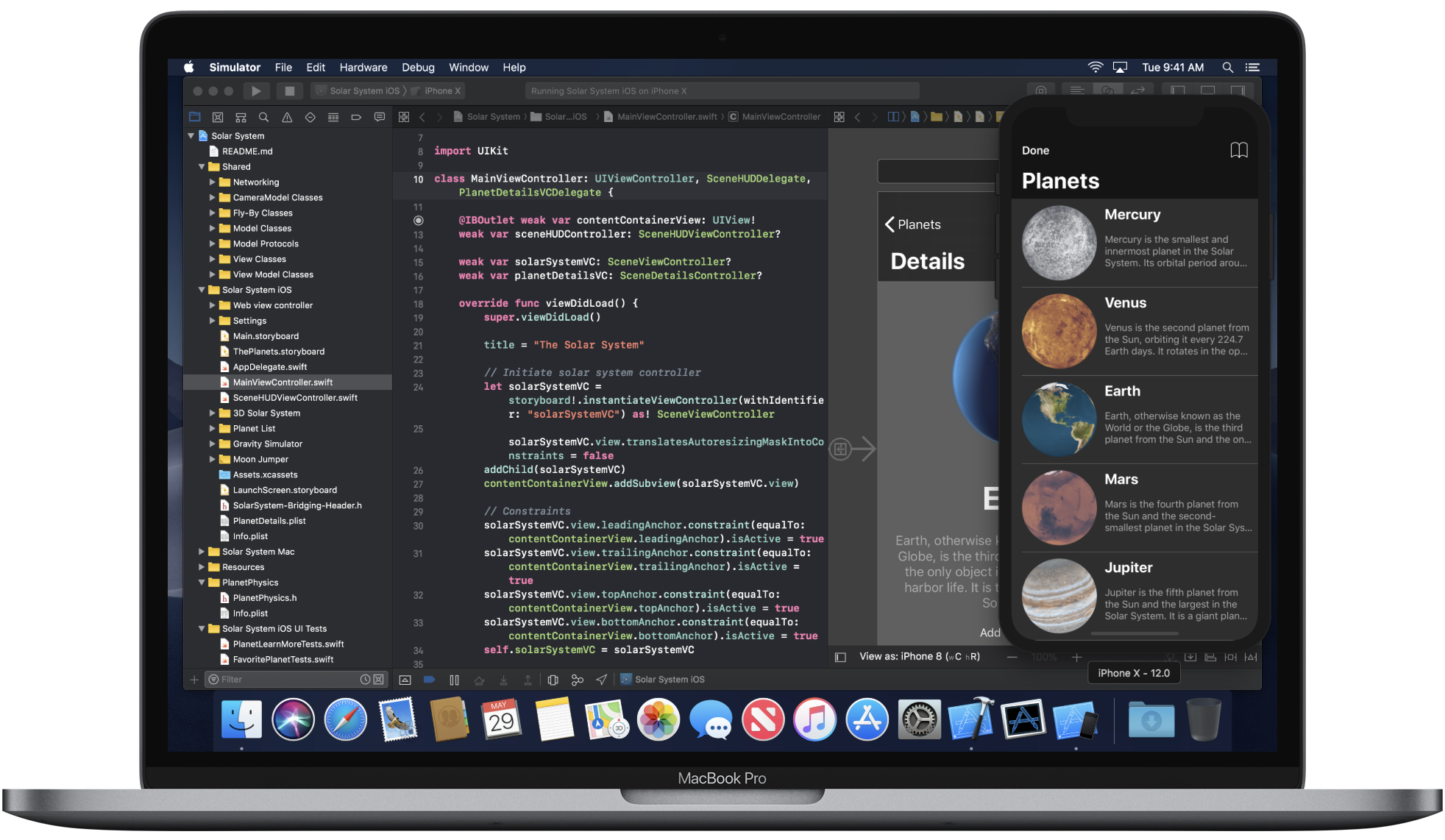
Xcode is how you make iOS apps, and it’s about as anyone-friendly as an Apollo capsule.

Xcode is how you make iOS apps, and it’s about as anyone-friendly as an Apollo capsule.

Programing is great, but it’s not using a hammer to build a jig. It’s using a hammer-factory to build a hammer. When the tool-making tools don’t look anything like the work-making-tools, the worker is disempowered. Unless your work is making code, coding isn’t tinkering.

Computers from 1998 to the present day have disempowered their users by not shipping with simple, easy-to-use tools for tinkering.

But What About Automator?

I’m being a little unfair with that last assertion. Apple did take a stab at code-free scripting in OS X, with an app called Automator. It first shipped with Mac OS X Tiger in 2005, and on the surface, it would appear to be exactly the kind of tool-making tool that I claim has been missing since Hypercard.

Automator in OS X Tiger.

Automator’s express mission was to allow people to create custom tools using a graphical model of stringing actions together. It would seem, on the surface, to be exactly what I’m asking for.

I realize that to some, the above screenshot seems as intimidating as the Xcode screenshot. But there's a key difference: Just about anyone can tell what is happening in the Automator workflow above. When you download an Automator workflow, you can open and dissect it like this, and see how it works. This gets back to my “blinking cursor” theory of computers that natively ran BASIC: If running it is a lot like writing it, you can learn by example and tinker your way to the next level.

Automator was a great idea that seemed to be held back by a lack of support, or interest, within Apple. It can do a lot, but never quite enough to become an essential part of my workflow. The few times I tried making anything useful with Automator, I would inevitably hit a wall, and resort to scripting. Any useful Automator workflow I ever got my hands on was essentially a wrapper around a script.

As just one concrete example, Automator has nothing like an if/then action, so there’s no way to do the simplest kind of flow control. Here’s an Apple support thread about, you guessed it, working around that limitation with scripting.

Also, it sounds glib to say it, but I’m sincere when I point out that no one ever made Myst with Automator. Automating repetitive tasks is fine, but we’re all better off when our tool-making tools allow us to have fun, to express our creativity, and to make art, games, and stories — not just resize and rename a bunch of JPEGs.

Third Parties Step Up as Best They Can...

There are several great Mac and iOS automation tools from third-party developers.

TextExpander is an easy first step into automation for many. It allows you to type something short, which gets replaced with something long. If you email Slugline support and I sign off my reply with “Feedback like this helps us prioritize future development, so thanks again for getting in touch!” I hope you don’t mind knowing that I don’t type that out every time by hand.

Keyboard Maestro is a deep and powerful tool for automation on Mac. I’ve been using it a ton since the discontinuation of Quadro for iPad, and I’m sure you’ll hear more from me about it.

Hazel is another wickedly useful Mac tool for Automation. I use it for simple things, like tidying up my downloads folder, but I also built a remote render-monitoring system with it for TANK.

In 2015, a company called DeskConnect released an ambitious iOS app called Workflow. The easiest way to describe Workflow is “Automator for iOS.” To my great surprise, where I struggled to do useful things with Automator, I immediately found myself creating useful tools with Workflow.

I also had a similar reaction to many others, which was that Workflow was so awesome and so powerful that I genuinely wondered if Apple would continue to allow it in the App Store.

Workflow. I stole this image from macrumors.com.

On iOS there’s Drafts, which offers automation for text. It’s a syncing notes platform that can spit out your text in all kinds of interesting and powerful ways.

Also on iOS there’s an amazing text editing app called Editorial that has an Automator-like UI for processing your text. It’s wonderful, but it hasn’t been updated in a long time.

Editorial has some nice features in its worklfow editor, such as collapsing and color-coding actions.

It wouldn’t surprise me if the creator of Editorial had trouble building a business model around it. I know first-hand how hard it is to make money with a productivity app. I’ve never invested too much effort into making anything complex with Editorial, because I didn’t know many other writers who used it. As much as I love TextExpander and Keyboard Maestro, the topic of discussion here really is about automation tools that ship with the computer, like BASIC and Hypercard did. Attempts to keep Hypercard alive as a paid product failed. The bicycle-making capability, I believe, must be ubiquitous. It must be fundamental to the computer, like a blinking cursor.

But unfortunately, in 2016, Apple took a very public step away from this idea.

...While Apple Steps Down

In 2016, Apple eliminated Sal Soghoian’s position, prompting him to leave the company. Here’s what John Gruber of Daring Fireball said about that:

...a huge part of my argument for why I feel so much more productive on a Mac than an iPad revolves around the automation technologies that Soghoian’s group developed. [...] I find this to be a profoundly worrisome turn of events for the future of the Mac. I hope I’m wrong.

Gruber wasn’t wrong. Automator hasn’t been noticeably updated since Sal left Apple, and the Mac still suffers from a lack of tinkering tools, and a massive rift between users and coders.

But while Gruber was right to be concerned that the Mac has not taken any steps forward in empowering its users to create tools, his iPad (along with his iPhone) has, and profoundly so.

Taking Shortcuts

That iOS app I mentioned above called Workflow? Apple did not kick it out of the App Store for being too powerful. Instead, in 2017, they acquired it. The reaction from the community was hopeful, but I and many others found it hard to be optimistic. Apple has a history of acqui-hiring, and of killing off beloved professional apps like Aperture and Shake.

But at their 2018 WWDC conference, Apple revealed the best possible news for Workflow fans. Workflow, under the new name Shortcuts, would be updated and integrated deeply with Siri in iOS 12.

Apple was not just going to ship an automation tool. They were publicly tying it to Siri, one of their most important initiatives. Apple shouted from their biggest stage that automation was a key part of the future of iOS.

When I watched this Keynote, I think my legs started pedaling involuntarily.

Shortcuts, Shortcuts, and Shortcuts

Apple did make the namespace a little confusing by renaming Workflow to Shortcuts. iOS 12 also debuted the idea of “Siri Shortcuts,” which are hooks that apps can add to allow Siri-based voice access to specific features. This is separate from, but related to, the Shortcuts app, which is literally just an updated version of Workflow. With it, you can download and/or create Shortcuts, which are graphical mini-scripts that can do all kinds of useful things on your iOS device.

Confusing? Sure. But wait a minute: Download and/or create. Shortcuts encourages you to do both equally. To dissect and learn, or to jump in and tinker. In other words, it’s the 2018 equivalent of the blinking BASIC cursor.

Bicycling

The bicycle is back, and I couldn’t be more excited.

Do you, like many people, have a love/hate relationship with your smartphone? Maybe you agree with Mat Honan, who wrote in his hilarious review of the Google Pixel 3, “When I am not looking at my phone, I become slightly anxious. And then, when I do actually look at it, I become even more so.”

Shortcuts, the app, is my favorite thing to happen to the iPhone since the camera got decent. I truly feel that my relationship to my iPhone has fundamentally changed, because I can now build things on it that make it do things that only I would ever want. Useful things, but also fun things. Complex things and simple things.

My wife was annoyed that her iPhone would make noisy alert sounds when she was trying to take a nap. I created a super-simple shortcut that asks how long she plans on napping, and turns on Do Not Disturb for that amount of time. It took five minutes to create and share with her via AirDrop.

The entire source of Naptime, and what it looks like running in Shortcuts.

I had an idea for an app that would help me prep portrait-orientations images for Instagram. The problem is, there’s no way such an app could ever be profitable. I didn’t really want to make money with it, but I couldn’t afford to hire a developer to make it, so the idea sat. Now I’ve tinkered it into existence as a Shortcut.

 
Instamax add white borders to photos that are too tall for Instagram.

Instamax add white borders to photos that are too tall for Instagram.


Prior to Shortcuts, the only Apple-supplied way to solve this problem would have been with a Mac running Xcode, and all the encumbrance of building a custom iPhone application. With Shortcuts I was able to tackle this problem while sipping a beer at my favorite lunch spot.

For this genuine use case, the iPhone is now its own development platform.

There’s so much you can do with Shortcuts that it’s difficult to know where to start. My recommendation is that you start very simple. Like maybe so simple that you wonder if it’s even worth doing.

There’s a pizza place near my office that serves one kind of pizza each day. They post it on their website in a consistent enough way that I was able to make a super-simple shortcut to extract just that information. I assigned it a Siri phrase, so now I can say to my phone, “Hey Siri, what’s the pizza of the day?”

My pizza shortcut running in Shortcuts, and via Siri.

My pizza shortcut running in Shortcuts, and via Siri.

Shortcuts can also do useful things with images beyond just cropping. These pretty screenshots adorning this post? I made them with another shortcut I put together that masks iPhone screenshots and arranges them in a row.

Big Tennis Screenshots takes your iPhone X, XS, and XS Max screenshots and makes them round and pretty. I love my curvy screenshots.

Big Tennis Screenshots takes your iPhone X, XS, and XS Max screenshots and makes them round and pretty. I love my curvy screenshots.

And hey, it’s no Myst, but I even made a shortcut that turns plain text int a simple interactive “Choose Your Own Adventure” story.

Mini Adventure is a very short game, and a very simple interactive story engine.

Mini Adventure is a very short game, and a very simple interactive story engine.

Pushing the Limits

Making a simple shortcut is easy. I showed my 9-year-old son how to do it, and before long he’d created a short quiz to test my knowledge of Pokemon and marine biology, and mock me for getting answers wrong. I asked him if programing a shortcut felt like building in Minecraft. He said “No, it’s much easier.”

It’s also possible to make deep and complex shortcuts. I made one called Next Small Thing that attempts to be a genuine project-based to-do list manager, with the unique feature of only showing you the next available task, so as not to overwhelm you — a feature that tends to only be available in overwhelming to-do apps.

Send any iPhone text to Next Small Thing, and it becomes a project that you can deal with one action at a time.

Send any iPhone text to Next Small Thing, and it becomes a project that you can deal with one action at a time.

The most complex shortcut I’ve made so far is called Drinking Buddy. It logs your alcohol consumption and gives you a rolling calculation of your Blood Alcohol Level, which you can optionally record to Apple's Health app. It started simple, but I kept tinkering, and before long I had something almost app-like.

Drinking Buddy running as a Widget in the iPhone Today View.

Drinking Buddy running as a Widget in the iPhone Today View.

A Touch Painful on Reentry

But shortcuts are not apps, as you will be constantly reminded when using them. They feel most app-like when run from their Today View widgets, like Drinking Buddy above. Alas, just as often, you’ll see their alerts and menus presented over the Shortcuts library, or even over the actual guts of the shortcut.

If you send text from Notes to my Next Small Thing shortcut, you’ll see the actions of the shortcut displayed behind the text field. If you press Cancel, you’re left staring at the equivalent of source code.

Shortcuts can be a bit brittle, and tricky to troubleshoot. Living with them can feel a bit like breakfast with Wallace & Gromit, where the trappings and mechanisms of your automation are dangling in plain view, and you may spend more time tinkering with them than you ostensibly save by using them.

wallacegromit01.jpg

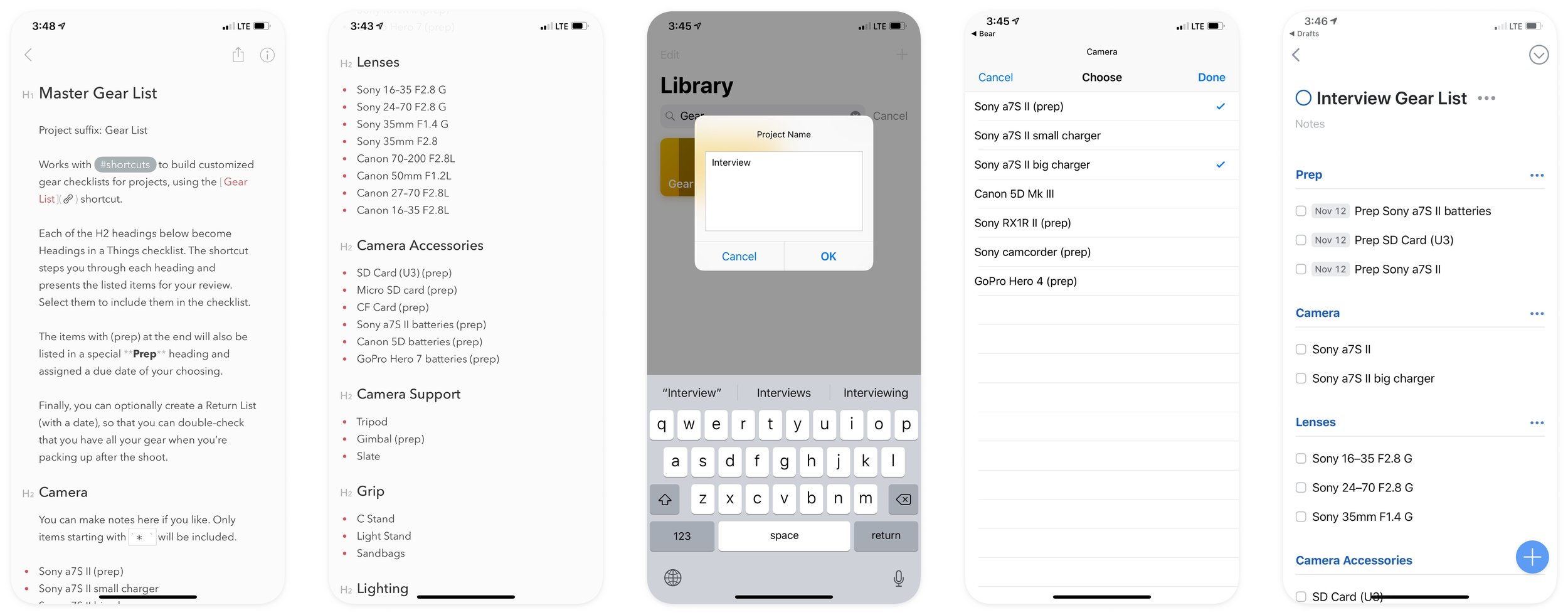
The power of Shortcuts to tie apps together can be both a strength and a limitation. One of my favorite shortcuts is also one that you’re least likely to try out, because it requires up to four apps and services to work. I use Gear Checklist to build custom checklists for all my photo and video shoots. Based off a master equipment list stored in either iCloud Drive or Bear, you select a project name and prep date, and then pick which items you need for the shoot. The shortcut then creates a project in Things, my to-do list app of choice. But to do so, it relies on the aforementioned Drafts, and an extension to Drafts called Things Parser. If you’re willing to install all this stuff and configure it, you, too, can conveniently create photo gear checklists at the touch of a button.

UPDATE: I’ve updated Gear Checklist to work without Drafts and Things Parser. Now all you need is Things.

Gear Checklist is the most genuinely useful Shortcut I’ve made.

Gear Checklist is the most genuinely useful Shortcut I’ve made.

Shortcuts can be run as Action Extensions (the things that show up when you press a Share button in iOS), which is very cool and powerful. For example, you can find a photo in the Photos app and share it to my Panogram shortcut that splits wide images up into tiles. But if you do, Panogram will probably crash, seemingly for lack of memory. This seems a bit silly on a phone with 4GB of RAM. Running Panogram from the shortcuts app works fine.

Panogram splits a photo into tiles that can be reassembled into a multi-image post in Instagram.

Panogram splits a photo into tiles that can be reassembled into a multi-image post in Instagram.

There are some simple things that Shortcuts just can’t do, like automatically run at a particular time, or set an alarm, or create a contact. There’s no way to copy/paste actions in a Shortcut, nor are there any tools for navigating your list of actions, so creating complex shortcuts requires patience and a lot of scrolling.

The good news is, a strong and vocal community has formed around Shortcuts. Apple must be noticing just how deep a chord they’ve struck with this addition. What we have now is truly just the beginning, and it’s wonderful to have reason to believe that Apple is committed to placing the power of the (tiny, portable, and ever-present) computer into the hands of the ones using it.

Back to Bicycles

So, is the “bicycle for the mind” back? I think so, but with a little caveat.

Job’s bicycle analogy was about efficiency of locomotion. Without a bicycle, we’re highly inefficient animals at just getting around, but we can build tools, like bicycles, which put us at the top of the list.

But I also take from it that riding a bicycle is good for you. It makes you stronger. Buying a tool and using it is like driving a car — you’ll get to your destination, and efficiently, but you’ve done nothing to better yourself. Every day that car will take you exactly the same distance.

But each day you ride a bicycle, your legs get stronger. You get where you’re going, sure, but maybe more importantly, the more you ride, the farther you can go.

This is the way I look at the Jobs bicycle analogy: When you build your own tools, you make your mind stronger, and able to go farther the next day.

As I use Shortcuts more and more, I feel myself somewhere between driving a car made of apps built by other people and riding a bicycle of my own creation. I’m creating genuinely useful tools, and I’m pushing myself farther each day I ride. But I’m also just using someone else’s app. I’m not sure if I’m truly living Sal Soghoian’s dream of the power of the computer residing in the hands of the user.

But I know something fundamental has changed in my relationship with my iPhone. It’s now something I can tinker with, in a way Apple hasn’t put their full weight behind for 20 years. The result, for me, is that my phone is less anxiety-inducing. It feels more personal, more mine. At times, it’s downright inspiring.

So, as I said on Twitter, Shortcuts is like an electric bicycle — maybe you’re not getting quite as much exercise as you should, but it’s better than driving.

Apple should be proud that they’re back in the bicycle business. Maybe, just maybe, the key to keeping our phones from ruining our lives is to put the power to control them back in our hands.

Download the Shortcuts Mentioned Here

Update 2021-10-11

We’re now on iOS/iPadOS 15 and this post is overdue for an update. Many of the limitations I detailed above have been amply addressed, as Shortcuts has been aggressively updated each year. That’s the good news—the bad news is that with the updates have come bugs. But the important long-term takeaway comes from this year’s WWDC announcement that Shortcuts is coming to macOS, and there’s even a rich migration path from Automator to Shortcuts. Craig Federighi, Apple's Senior Vice President of Software Engineering, put it in no uncertain terms when he said “Shortcuts is the future of automation on Mac.”

Tags: Apple, iPhone, Automation, Photography, Software, Shortcuts
2 Comments

How the Meta-work of Automation is the Real Work of Work

July 18, 2018

Note: The original title of this post was “Quadro is Dead, Long Live Stream Deck.”

In my making-of video for TANK, I heaped praise on an iOS app called Quadro, that I’d used to create a custom iPad control surface for my common After Effects tasks.

Mere Days later, Quadro announced that they were shutting down the app, having “not been able to build a solid business structure around it.” This saddened me on many levels — both as a dissapointed user, and also as yet another all-too-familar tale of a developer with a cool, niche product, unable to connect with a paying audience.

The Pursuit of Hardware Control

TANK_BTSstills_01_TANK_TMO_Cut_06_0001.jpg

If you look closely at that video, you’ll see my fascination with specialized input devices expressed in desktop real-estate. Above my keyboard is Loupedeck, a hardware controller made specifically for Lightroom. To my right are the Tangent Element control panels for video color grading. An Apple Magic Trackpad actually functions as a control surface for Magic Bullet Looks. And right next to my iPad is a little box with 15 backlit buttons: the Stream Deck from Elgato.

81bRHR82h2L._SL1500_.jpg

How the Stream Deck Just Got Awesome

The Stream Deck is designed for live streamers, and automates things they care about, like switching feeds and snap-tweeting their insta-fam. Ninety-nine percent of what it does makes no sense to me. But you can configure those little buttons to perform keyboard shortcuts, so that was enough for me to try it out.

Assigning a single keystroke or chord to a button is not exactly the superpowers that Quadro provided though. The After Effects palette I built for TANK had many multi-sequence macros that performed several operations in sequence. Here are a few examples:

  • Duplicate a group of layers, keeping them grouped together: ⌘D, ⌘]
  • Set the Work Area to the duration of the selected layer: I, B, O, N, I
  • Trim selected layer to match the below layer: ⌘↓, I, ⌘↑, ⌥[, ⌘↓, O, ⌘↑, ⌥]
  • Create a new Null layer and trim it to the duration of the selected layer: ⌘⌥⇧Y, ⌘↓, I, ⌘↑, ⌥[, ⌘↓, O, ⌘↑, ⌥], I

(Those are Mac modifier keys — for Windows, replace Command ⌘ with Control, and Option ⌥ with Alt.)

Without this ability, the Stream Deck was a nice-to-have, but not essential for me. But Elgato recently released Stream Deck software update 3.1, with support for Multi-actions. I have begun porting my most-used Quadro macros to Stream Deck, and the results are great so far.

With this update, Stream Deck went from being a fun bonus to, I think, a must-have (and very affordable) add-on for power-users of any desktop software.

Stream Deck on Amazon

A Software-only Solution

Another very cool option I have explored is Keyboard Maestro from Stairways Software. A powerful general-purpose automation tool for Mac, Keyboard Maestro lets you build very sophisticated macros that go well beyond what Quadro or even Stream Deck can do.

Here’s a very simple example I created for TANK. Since I was often duplicating layers dozens if not hundreds of times to create particle effects, I created a simple macro that would ask me for a number, and then “press” ⌘D that many times.

I’ve only scratched the surface of Keyboard Maestro, but I have a feeling I’ll soon wonder how I ever lived without it.

Automation is the Work

Many years ago, in film school, I was up late with the brilliant filmmaker Jamie Caliri, helping him with an ambitious stop-motion film. We were sanding and assembling props that he had cast from resin. I asked him how many copies of something pushed him from just hand-making each one into the realm of building a jig, or making a mold, to automate the process. Without even a pause his answer was: Three.

My father in his workshop in northern Minnesota, building a temporary pine countertop to test the fit of the actual hardwood countertop he's planning on making. I'm proud to think my computer is as organized as his workshop. Unfortunately for both of us, my workshop is as organized as his computer.

I used to think that the “work” of work was the creative mouse-moving or pencil-pushing or camera-clicking. I considered my dalliances into tool-making to be a distraction, and I was impatient with tasks like balancing a gimbal or leveling dolly track. But then I started watching how professionals in other fields work.

Most of the work of painting a room in a house is prep and masking. Much of the process of fine woodworking is creating jigs and rigs. And most of the work on a film set is before “action” and after “cut.”

Notice how brilliant creatives can’t help but build and share tools, like Andrew Kramer’s indispensable FX Console for After Effects, or Nick Campbell’s amazing Cinema 4D tools at Greyscalegorilla.

Professional chefs so celebrate the meta-work of their craft that they have a term for it: mise en place. French for “to put in place,” it means to have all your tools and ingredients prepped and ready to go before you begin the part that to the rest of the world looks like cooking.

When I make stuff, I inevitably wind up making things that help me make the stuff. Tools like Keyboard Maestro for Mac, Workflow for iOS (soon to be integrated into iOS 12), Hazel for Mac (more on that soon I hope), TextExpander, and even the After Effects expressions and scripting engine itself, help us artists build the custom jigs and rigs that make our work easier and more creative. But more than that, they create our artistic mise en place — the working environment unique to our needs that helps the creativity flow.

Tags: Adobe After Effects, Filmmaking, Magic Bullet, iPad, Color, Shortcuts
1 Comment

Lightroom CC Presets and Profiles Sync

July 03, 2018

Finally!

(And pssst... there’s a sale! Details below.)

From the Adobe Blog on June 19:

Starting today, Lightroom CC, our cloud-based photo service, can synchronize both presets and profiles, including custom-created presets and third-party presets and profiles. This means you can have access to any preset that you’ve made or purchased on all of your devices, enabling you to truly edit your photos anywhere.

Note that this syncing only works with Lightroom CC. Lightroom Classic was updated as well, but Adobe is being true to their word that cloud-based syncing workflows are not a part of Classic’s improvement roadmap.

So this means, and again I really have to say finally, if you use any of my Prolost Profiles and/or Presets in Lightroom CC desktop, they will now sync to the mobile versions. And it’s a good, smart sync too — you can manage which profiles and presets are visible on Lightroom CC for iOS and Android.

What this means for me is that my Lightroom workflow — which has always been heavily based around presets, and now profiles as well — works completely on my iPhone. Put another way, the camera I always have with me has most of my desktop-based post-processing workflow built right in.

#yourfilter is better than #nofilter

There are no shortage of fun, easy and/or creative ways to post-process your iPhone photos, but what excites me about this is that, whether you use Profiles or Presets, and whether you build your own, or buy from folks like me, you can now curate your own collection of mobile photo looks. And you can apply them to raw DNGs that you can shoot with increasingly sophisticated control, using your phone’s camera. This is far more sophisticated than simply applying filters to our mobile photos. It’s more akin to choosing your own digital film stock.

Slow is Smooth

The reason I didn’t blog about this promptly was that I was visiting Yosemite National Park with my family. I had my Sony a7S II with me of course, but I shot a lot with my iPhone as well. Along with Preset & Profile sync, Lightroom CC for iOS also now features a “technology preview” of a Long Exposure mode, with optional built-in stabilization so you can get silky slow-shutter shots without a trpid. I tried it out on Yosemite’s beautiful waterfalls, and then was able to complete all the post I would ever want to do on these shots right there on my iPhone X.

Bridalveil Fall, Long Exposure. All processing done in Lightroom CC for iOS.

My brother Eric in front of the glacier exhibit he sculpted for the Yosemite Visitor's Center. Prolost Geartrain GT02 profile, all processing done in Lightroom CC for iOS.

My wife and son in front of Yosemite Falls. Prolost Geartrain GT10 profile, all processing done in Lightroom CC for iOS.

Lower Yosemite Falls, Long Exposure. All processing done in Lightroom CC for iOS.

Celebrating with a Sale

I’m so excited about this Lightroom release that I’m putting all my Lightroom Presets and Profiles on sale through July 4th. Use coupon code FINALLY to get 40% off.

Shop Prolost Presets & Profiles
Tags: Lightroom, Adobe, Color, Photography, iPhone
Comment
Prev / Next
Featured
Maxon One
Maxon One

Cinema 4D, Forger, Red Giant, Redshift, Universe, and ZBrush, all in one bundle.

Slugline
Slugline

Screenwriting for Mac, iPad, and iPhone

Prolost Store
Prolost Store

Apps, presets, and other goodies for filmmaking and photography.


Featured Post

Featured
Log is the “Pro” in iPhone 15 Pro
Oct 10, 2023
Log is the “Pro” in iPhone 15 Pro
Oct 10, 2023
Oct 10, 2023

Recent Posts

Featured
My App Will Harm You Physically, Using Math
Dec 8, 2025
My App Will Harm You Physically, Using Math
Dec 8, 2025
Dec 8, 2025
Cameras, Phones, and Log — What’s the Juice?
Feb 3, 2025
Cameras, Phones, and Log — What’s the Juice?
Feb 3, 2025
Feb 3, 2025
Kino: My New Favorite iPhone Video App
May 29, 2024
Kino: My New Favorite iPhone Video App
May 29, 2024
May 29, 2024
Apple’s “Let Loose” iPad Event was Shot on iPhone — With Panavision Lenses
May 9, 2024
Apple’s “Let Loose” iPad Event was Shot on iPhone — With Panavision Lenses
May 9, 2024
May 9, 2024
iPhone ProRes Log in Peru and Taiwan
Jan 30, 2024
iPhone ProRes Log in Peru and Taiwan
Jan 30, 2024
Jan 30, 2024
What I Want to Do in Apple Vision Pro
Jan 19, 2024
What I Want to Do in Apple Vision Pro
Jan 19, 2024
Jan 19, 2024